Firestick & Apple TV 4K Setup Guide 2026
Install a 4K streaming app on Firestick with Downloader, set up Smarters Player on Apple TV 4K, and log in with Xtream Codes API in about 3 minutes.
Got your BextFlix login and want to start watching tonight? Setting up a 4K streaming app on Firestick or Apple TV 4K takes about 3 minutes once you know the steps.
Part 1How to Install a Media Player on Firestick
These steps work on every current model: Fire TV Stick Lite, Fire TV Stick 4K, Fire TV Stick 4K Max and Fire TV Cube. Amazon occasionally renames menus, but this path has stayed the same for years.
1Reveal Developer Options
Amazon hides Developer Options by default. Here’s how to unlock them:
- From the Firestick home screen, open Settings (the gear icon on the right).
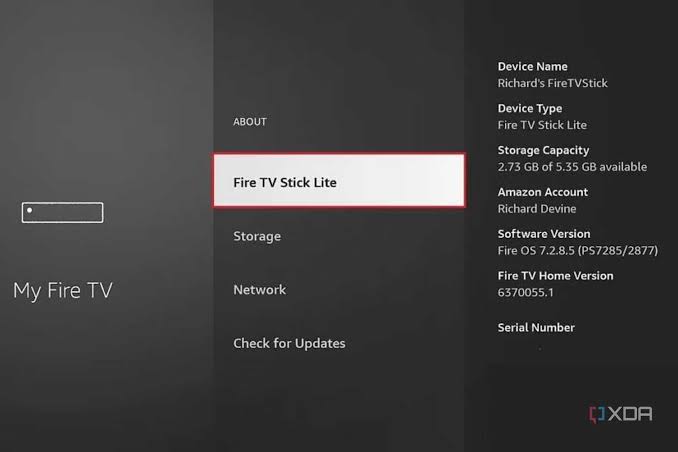
- Go to My Fire TV.
- Select About.
- Highlight your device name (for example Fire TV Stick 4K) and press the OK/Select button 7 times quickly.
- A message appears: “No need, you are already a developer.”
- Press Back once. Developer Options now shows in the My Fire TV menu.
2Install Downloader and allow “Install unknown apps”
Downloader is a free app from the Amazon Appstore that lets you fetch files by URL or short code.
- On the home screen, open Find → Search (magnifying glass).
- Type Downloader and select the orange app by AFTVnews.
- Click Get / Download and wait for it to install.
- Go to Settings → My Fire TV → Developer Options.
- Select Install unknown apps (on older models: Apps from Unknown Sources).
- Find Downloader and switch it ON.
3Enter the Downloader code to get the APK
This is where the Downloader code installation happens.
- Open Downloader. If asked, allow access to files and media.
- Click the URL / Search box on the Home tab.
- Type the Downloader code or APK link you received from BextFlix support.
- Click Go. The player app downloads automatically.
- When the install screen appears, click Install, then Done.
- Click Delete twice to remove the APK file and free up storage.
4Log in with Xtream Codes API
Now connect the player to your BextFlix account with the Xtream Codes API setup:
- Open the player from Your Apps & Channels.
- Accept the terms and choose the TV layout if asked.
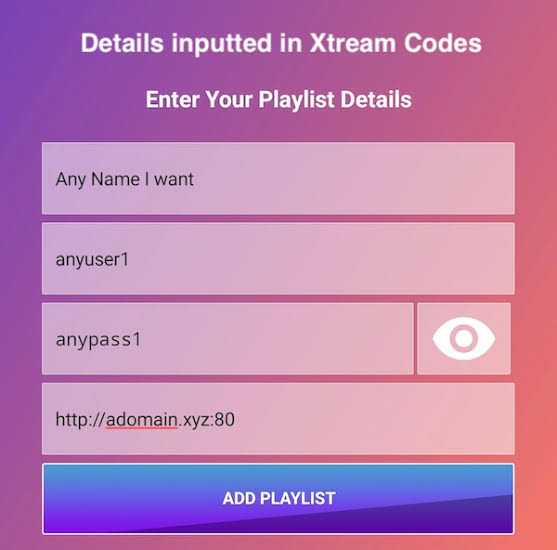
- Select Login with Xtream Codes API.
- Fill in the 4 fields:Any name
BextFlixUsernamefrom your activation messagePasswordfrom your activation messageURL / Serverwithhttp://and the port, e.g.:8080 - Click Add User. The app loads your Live TV, Movies, Series and TV Guide (EPG).
Part 2How to Set Up a Stream Player on Apple TV 4K
The Apple TV 4K stream setup is even simpler: no Developer Options and no sideloading. Everything comes from the official App Store.
1Open the Apple TV App Store
- Turn on your Apple TV and check it’s online (Settings → Network).
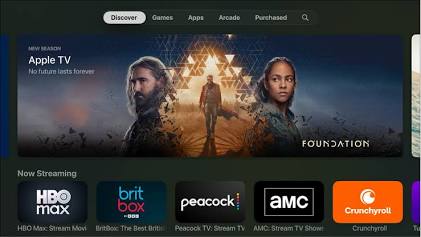
- From the home screen, open the App Store.
- Sign in with your Apple ID if you haven’t already.
2Search and install a player app
Both of these tvOS players support Xtream Codes:
| App | Why choose it |
|---|---|
| Smarters Player Lite | Clean layout, easy Smarters Player tvOS setup, fast TV guide |
| GSE Smart IPTV | Very customizable, supports catch-up and recordings |
- In the App Store, select Search.
- Type Smarters Player Lite (or GSE Smart IPTV).
- Click Get, then Open.
3Connect with Xtream Codes API
- Open the app and choose Login with Xtream Codes API (in GSE: Xtream Codes API → + Add).
- Enter the name
BextFlix, your Username, Password and Server URL (withhttp://and the port). - Select Add User / Login.
- Wait a few seconds while channels, movies and the TV guide load.
Part 3Troubleshooting Common Issues
Most problems come down to one of three things. Here’s how to fix them fast.
Buffering or freezing
- Restart your device. Firestick: hold Select + Play for 5 seconds. Apple TV: Settings → System → Restart.
- Check your speed: at least 10 Mbps for HD and 25 Mbps for 4K.
- Use a wired connection if possible. On Wi-Fi, use the 5 GHz band.
- Clear the app cache: Settings → Applications → Manage Installed Applications → your app → Clear Cache.
“Invalid details” or “Login failed”
- Check for typos: usernames and passwords are case-sensitive.
- The Server URL needs
http://and the port number, with no space at the end. - Don’t use
https://unless your activation message says so. - If your trial or plan has ended, renew your plan. Your login stays the same.
TV guide (EPG) is blank
- In the app, open Settings → EPG and choose Update / Reload EPG.
- Wait 2–5 minutes: the guide is a large file.
- Check the device’s date, time and timezone are correct.
- Still blank? Log out and back in with your Xtream Codes details.
Frequently Asked Questions
Which Firestick models support 4K streaming?
The Fire TV Stick 4K, Fire TV Stick 4K Max and Fire TV Cube support 4K. The Fire TV Stick Lite and standard Fire TV Stick play up to Full HD (1080p). All models work with BextFlix.
Do I need to jailbreak my Firestick?
No. Turning on Developer Options and allowing Downloader to install apps is an official Amazon setting. It doesn’t void your warranty and you can turn it off at any time.
Can I use the same account on Firestick and Apple TV?
Yes. You can install your BextFlix account on several devices. The number of screens you can watch at the same time depends on your plan (1 to 4 devices, or more on a custom plan).
What internet speed do I need for 4K streaming?
We recommend at least 25 Mbps for 4K and 10 Mbps for HD, with a stable connection. A wired Ethernet connection or 5 GHz Wi-Fi gives the best results.
What is Xtream Codes API?
Xtream Codes API is a login method used by most IPTV player apps. Instead of loading a long playlist file, you enter a server URL, username and password, and the app loads live TV, movies, series and the TV guide automatically.
Does Apple TV need sideloading?
No. On Apple TV you install player apps directly from the official App Store, then log in with your Xtream Codes details.
Ready to start watching?
You’re set up on Firestick and Apple TV 4K. Enjoy 55,000+ live channels and 220,000+ movies and series in up to 4K.
Ready to Start Streaming in 4K?
Join 5,400+ happy customers watching live channels, movies, series and sports on every screen. Try it free for 24 hours.
- No satellite dish
- All devices
- 24/7 WhatsApp support