IPTV Buffering? 10 Fixes That Work
Stop the spinning wheel on Firestick, Smart TV and Android. Speed checks, Wi-Fi, cache, player settings, DNS and VPN fixes, step by step.
Nothing ruins game night like a spinning wheel right before kickoff. The good news: most IPTV buffering is fixable in a few minutes, and you usually don’t need new equipment. This guide covers the 10 fixes that work on Firestick, Smart TVs, Android boxes and phones in the USA and Canada.
Why does IPTV buffer?
IPTV streams live video over your internet connection. Your player keeps a few seconds of video in a buffer; when data arrives slower than it plays, the buffer empties and the picture freezes. That usually comes down to one of these:
Quick startThe 60-second checklist
Try these first. They fix most buffering problems before you get to the detailed steps.
Step by step10 Ways to Fix IPTV Buffering
1Test your internet speed on the TV device
Test on the device you watch on, not your phone. A phone next to the router can show 300 Mbps while a Firestick behind the TV gets 8.
- On Firestick or Android TV, open the browser (Silk or Downloader) and go to fast.com, or install the Speedtest app.
- Run the test 2–3 times, ideally during the hours you usually watch.
- Compare with the table below. If you’re under the minimum, the next fixes (Wi-Fi and Ethernet) matter most.
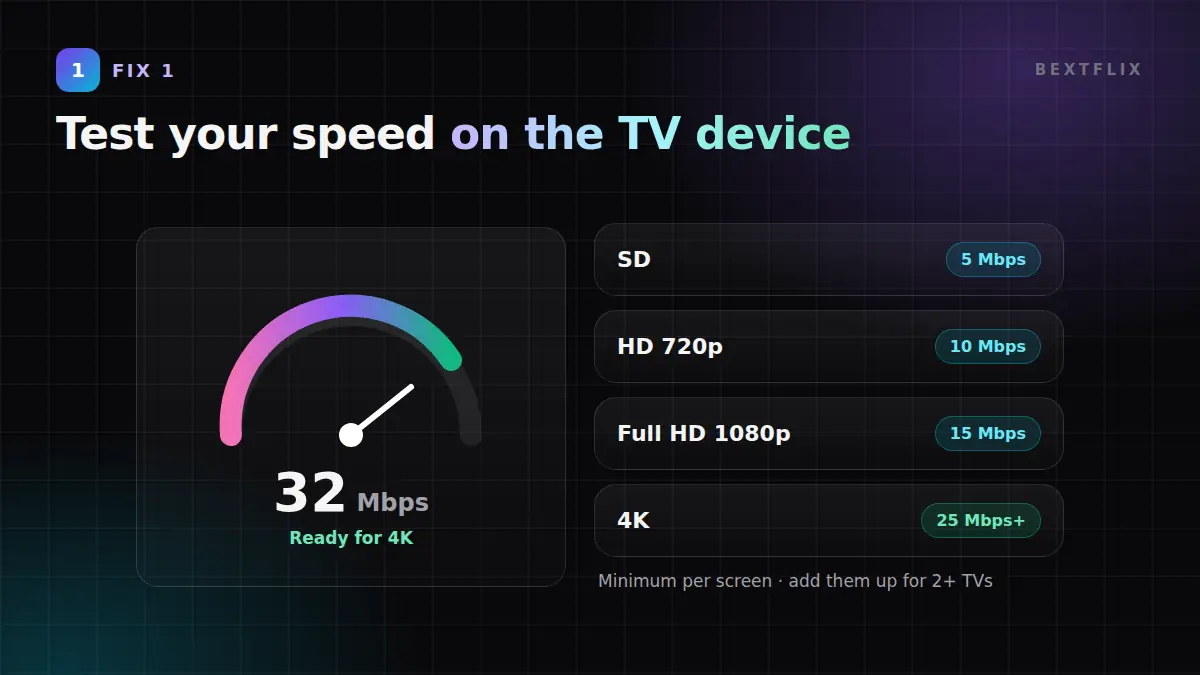
| Quality | Minimum per screen | Recommended |
|---|---|---|
| SD | 5 Mbps | 8 Mbps |
| HD (720p) | 10 Mbps | 15 Mbps |
| Full HD (1080p) | 15 Mbps | 20 Mbps |
| 4K | 25 Mbps | 35 Mbps+ |
2Restart your device and router (the right way)
Routers and streaming sticks run for weeks without a reboot and slowly fill up memory. A proper power cycle clears it.
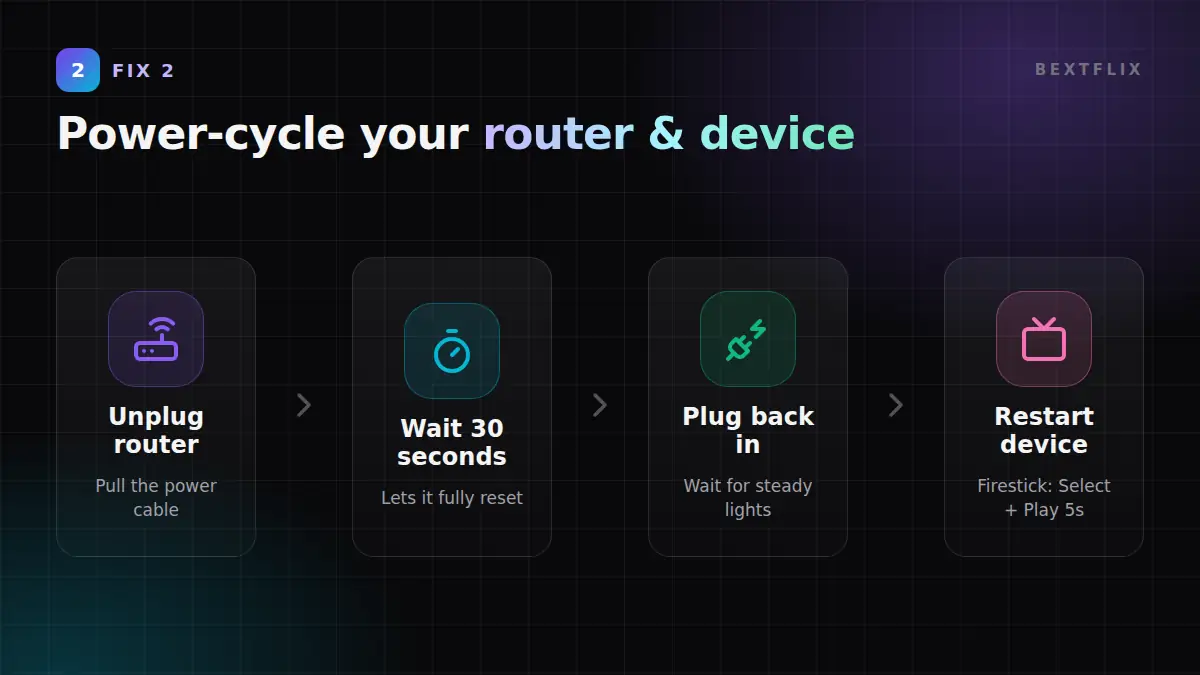
- Turn off your TV device and unplug your router/modem from the power.
- Wait 30 seconds. This lets the router fully reset.
- Plug the router back in and wait until all the lights are steady (1–2 minutes).
- Restart the streaming device. Firestick: hold
Select + Playfor 5 seconds. Android TV: Settings → System → Restart.
3Use Ethernet or switch to 5 GHz Wi-Fi
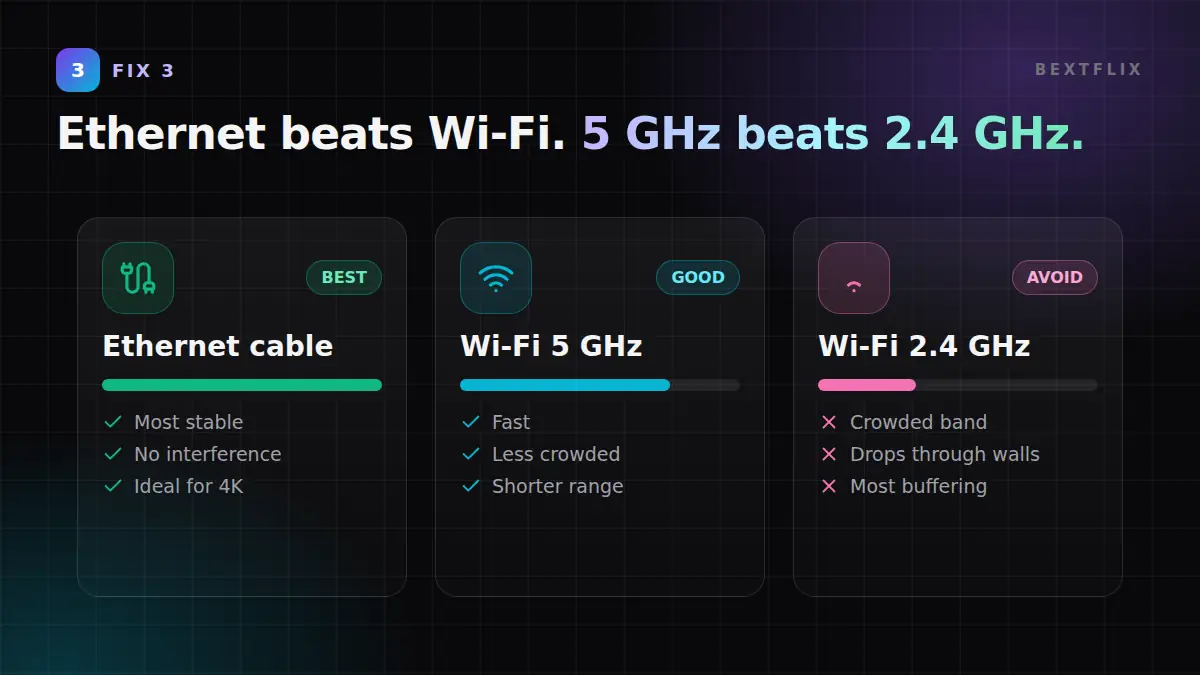
This is the single biggest fix for most people. Wi-Fi signal drops fast through walls and floors, and the 2.4 GHz band is crowded in apartments.
- Best: connect an Ethernet cable from the router to the TV or box. For Firestick, use an official Amazon Ethernet adapter (about $15).
- Good: connect to your router’s 5 GHz network (often named with “-5G”). It’s faster and less crowded than 2.4 GHz.
- Move the router higher and closer to the TV, away from microwaves and thick walls.
- Big house? A mesh Wi-Fi system or a powerline adapter beats a cheap range extender.
4Clear the player app cache
A full cache makes the player slow and stuttery, especially on Firestick models with 8 GB of storage.
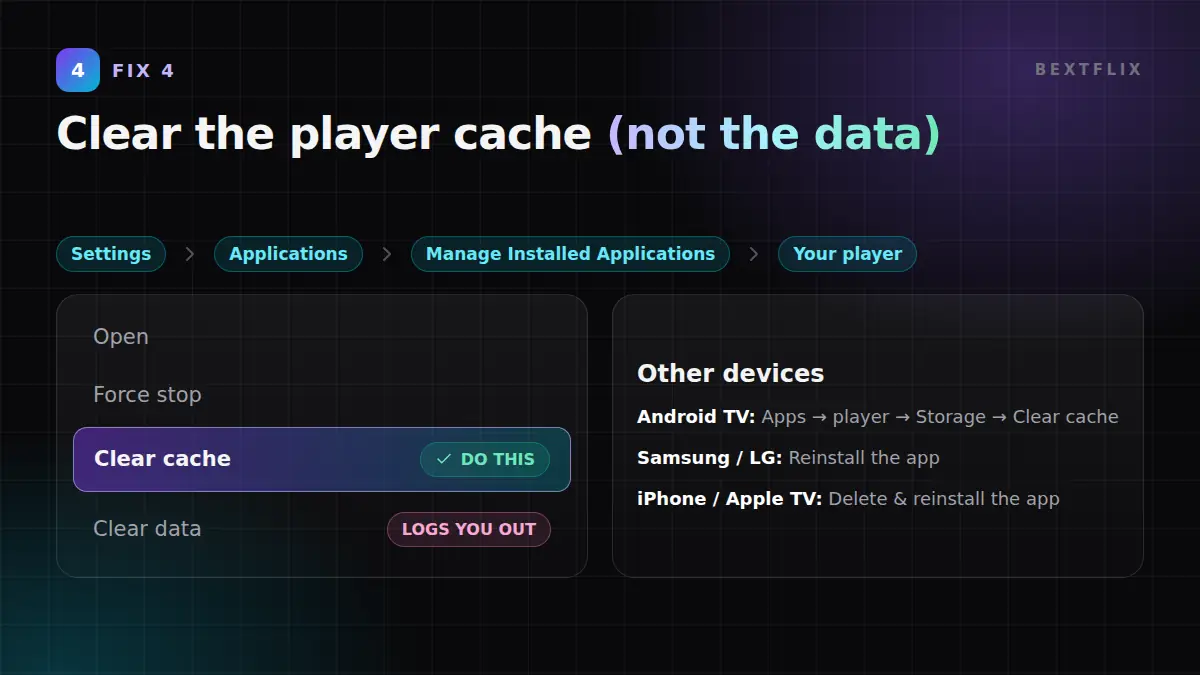
- Firestick: Settings → Applications → Manage Installed Applications → your player → Force Stop, then Clear Cache.
- Android TV / box: Settings → Apps → your player → Storage → Clear cache.
- Samsung / LG Smart TV: there’s no cache button. Uninstall and reinstall the app, or unplug the TV for 1 minute.
- iPhone / Apple TV: delete and reinstall the app.
5Free up memory and storage
- Uninstall apps you don’t use (Settings → Applications → Manage Installed Applications).
- Close apps running in the background before you start watching.
- On Firestick, turn off Settings → Preferences → Featured Content → autoplay video and audio. It uses memory and bandwidth on the home screen.
- Keep at least 1 GB of free storage. Check it in Settings → My Fire TV → About → Storage.
6Adjust the player and buffer settings
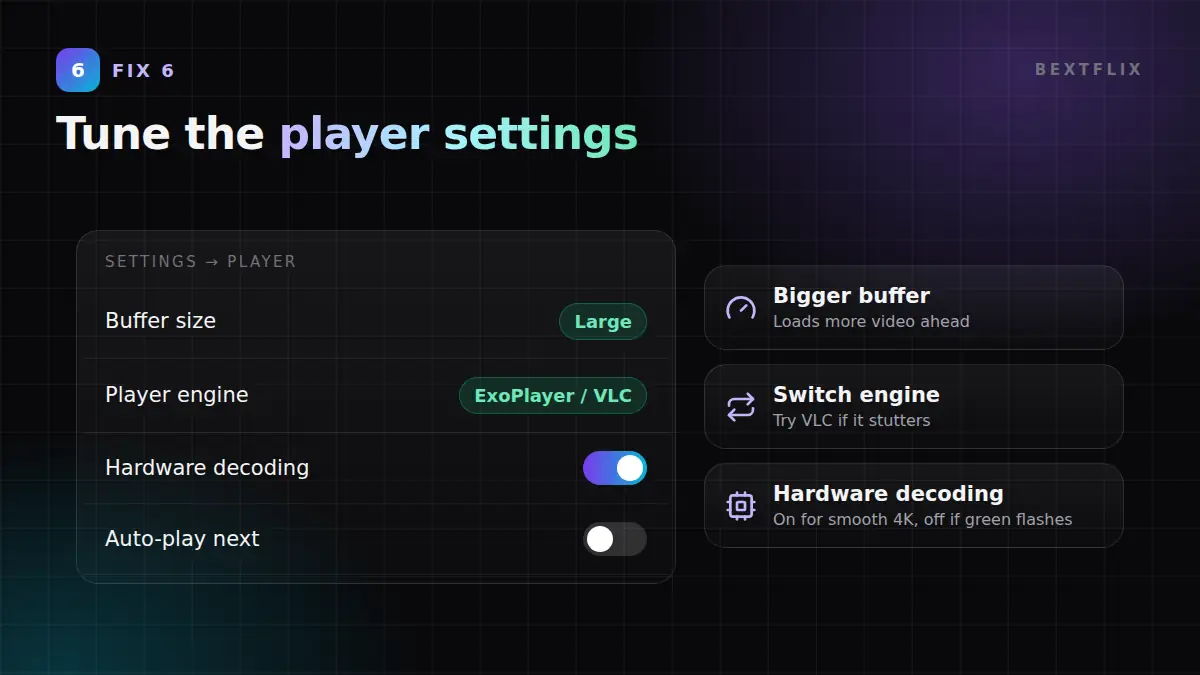
Most IPTV players let you change how much video they load ahead, and which video engine they use.
- Open the player’s Settings → Player (or Playback).
- Set the buffer size to Medium or Large if the option exists.
- Try a different player engine: switch between Native / ExoPlayer and VLC.
- Toggle hardware decoding. Turn it on for smoother 4K, or off if you see green flashes or freezing.
- Still stuttering? Try another trusted player app with the same login. Some devices simply work better with a specific player.
7Pick the right quality for your connection
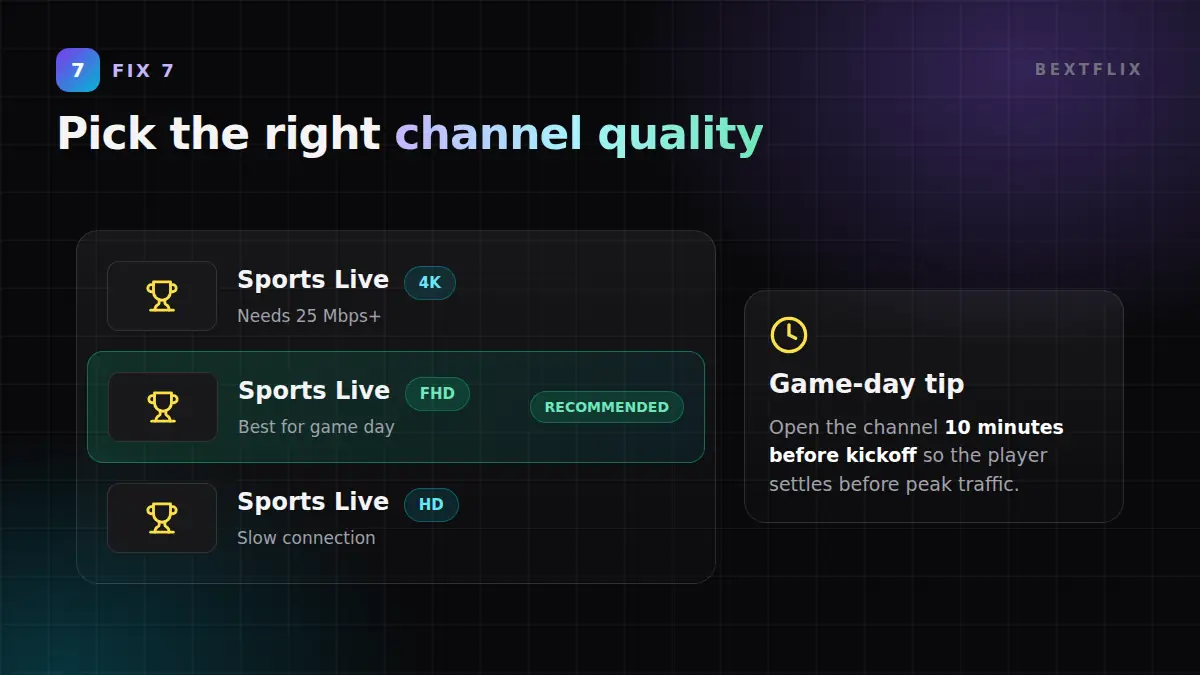
BextFlix carries most popular channels in several versions: 4K, FHD and HD. If your speed is borderline, the FHD version will look almost as good and play far more smoothly, especially during the busiest moments like NFL Sunday afternoons, NBA playoffs or UFC main events.
8Change your DNS
Your internet provider’s DNS can be slow to look up streaming servers. Switching to a public DNS often makes channels start faster.
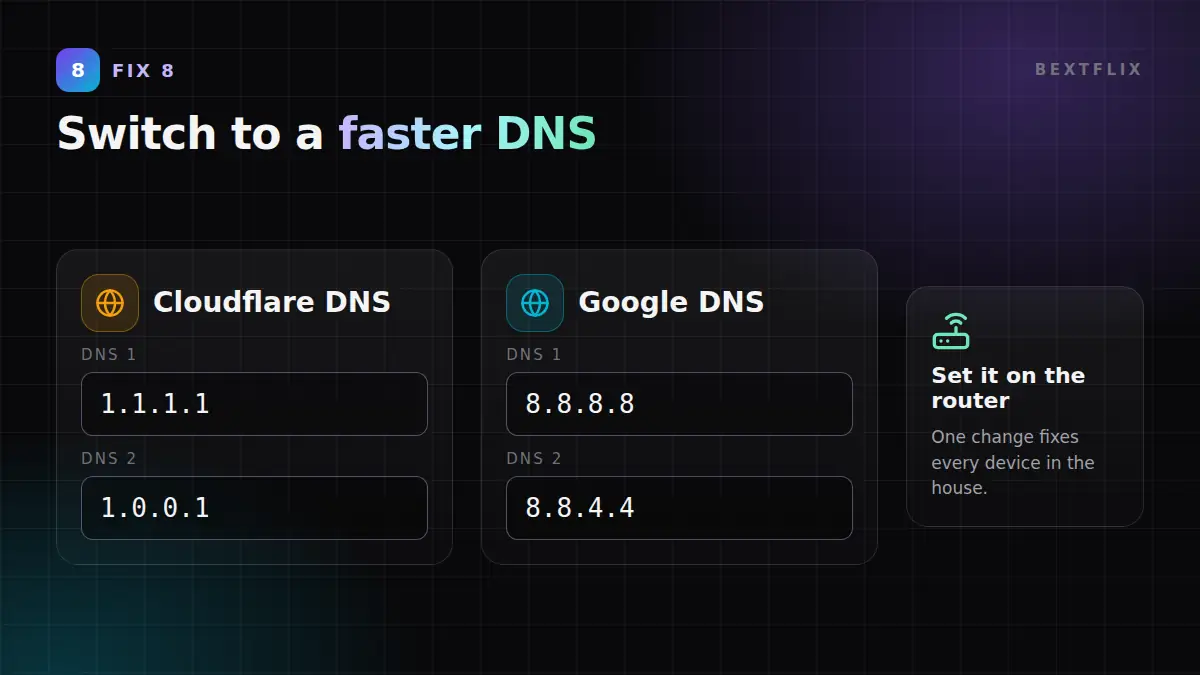
- On the router (best, covers every device): log in to your router and set DNS to Cloudflare
1.1.1.1/1.0.0.1or Google8.8.8.8/8.8.4.4. - On Android TV: Settings → Network → your network → IP settings → Static, then enter the DNS above.
- Restart the device after the change.
9Check for ISP throttling and try a VPN
Some internet providers manage video traffic during peak hours. A clue: your speed test looks fine, but streams still buffer in the evening or during big games.
- Test at a quiet time (morning) and at a busy time (8–10 pm). A big difference points to congestion or throttling.
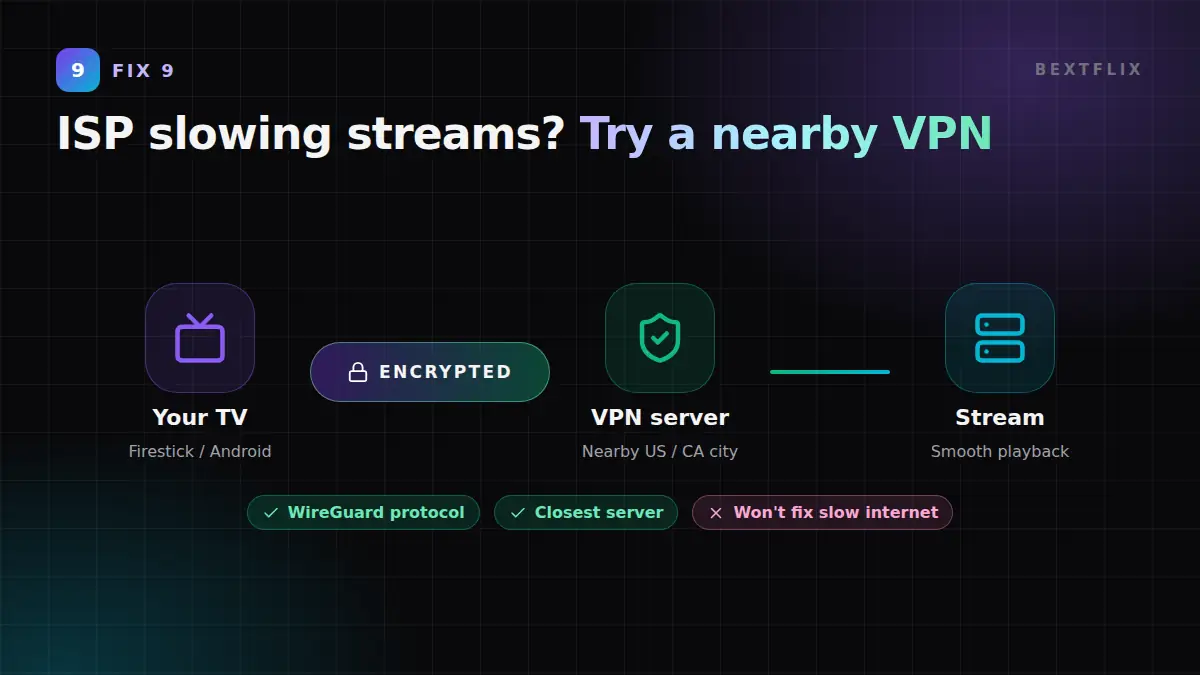
- Install a reputable VPN app on your streaming device and choose the WireGuard protocol.
- Pick a server close to you (a nearby US or Canadian city). Faraway servers add delay.
- If buffering gets better with the VPN, your provider was likely slowing streams.
10Update the app and device firmware
- Firestick: Settings → My Fire TV → About → Check for Updates.
- Android TV: Settings → System → About → System update.
- Smart TVs: Settings → Support → Software Update.
- Update your player app to the latest version. Old versions can struggle with newer stream formats.
- Very old device (Firestick 1st/2nd gen)? Upgrading to a Fire TV Stick 4K or 4K Max makes a real difference.
Cheat sheetSymptom → Cause → Fix
| What you see | Likely cause | Try |
|---|---|---|
| Buffers on every channel | Internet speed or Wi-Fi | Fixes 1, 2, 3 |
| Buffers only in the evening | Peak-time congestion or throttling | Fixes 7, 9 |
| Buffers only on 4K | Not enough bandwidth | Fix 7 (use FHD) |
| App slow, menus lag | Full cache or memory | Fixes 4, 5, 10 |
| Channels slow to start | Slow DNS | Fix 8 |
| Picture freezes, audio continues | Decoder / player engine | Fix 6 |
| One channel only | That channel’s source | Try its HD/FHD version and message support |
New to BextFlix? Follow our Firestick & Apple TV 4K setup guide to install the player in about 3 minutes, or browse the full channel list.
Frequently Asked Questions
Why does my IPTV keep buffering?
Most buffering comes from your home connection, not the service: slow or unstable internet, weak Wi-Fi, a full device cache, or your internet provider slowing video traffic at busy times. Start with a speed test and a full restart of your device and router.
What internet speed do I need for IPTV without buffering?
We recommend at least 10 Mbps for HD, 15–20 Mbps for Full HD and 25 Mbps or more for 4K, per screen. If several people stream at once, add the speeds together. Stability matters as much as speed, so a wired connection is best.
Why does IPTV buffer only during big games?
During NFL Sundays, NBA playoffs or UFC events, millions of people stream at the same time and some internet providers manage video traffic more heavily. Use Ethernet or 5 GHz Wi-Fi, pick the FHD version of the channel, and try a nearby VPN server if your provider slows streams.
Does a VPN stop IPTV buffering?
A VPN can help if your internet provider throttles streaming traffic, because it hides what kind of traffic you’re using. It won’t help if your connection is simply too slow. Choose a fast server close to you (for example a US or Canadian city) and the WireGuard protocol.
How do I clear the cache on Firestick?
Go to Settings → Applications → Manage Installed Applications, select your IPTV player, then choose Force Stop and Clear Cache. Don’t choose Clear Data unless you’re ready to log in again.
Is buffering on one channel a service problem?
If only one channel buffers while others play smoothly, that channel’s source may be busy. Try its backup version (HD/FHD) and message BextFlix support with the channel name so we can check it.
Smooth streaming starts here
Try BextFlix free for 24 hours: 55,000+ live channels, every NFL, NBA, NHL and UFC event, and 220,000+ movies and series in up to 4K.
Ready to Start Streaming in 4K?
Join 5,400+ happy customers watching live channels, movies, series and sports on every screen. Try it free for 24 hours.
- No satellite dish
- All devices
- 24/7 WhatsApp support