TiviMate on Firestick Zero-Buffering Setup
Install TiviMate on Firestick 4K Max, add Xtream Codes or M3U, and tune buffer, decoder, Auto Frame Rate and EPG for smooth, lag-free live TV.
TiviMate is the most popular IPTV player on Firestick and Android TV, for good reason: a fast TV-guide layout, multiple playlists, catch-up, recording and fine control over playback. This TiviMate Firestick guide takes you from a fresh Firestick to a tuned, stutter-free setup in about 10 minutes.
What you need
Part 1TiviMate Firestick install: step by step
TiviMate isn’t in the Amazon Appstore, so you install it with the free Downloader app. These steps work on every current model: Fire TV Stick Lite, 4K, 4K Max and Fire TV Cube.
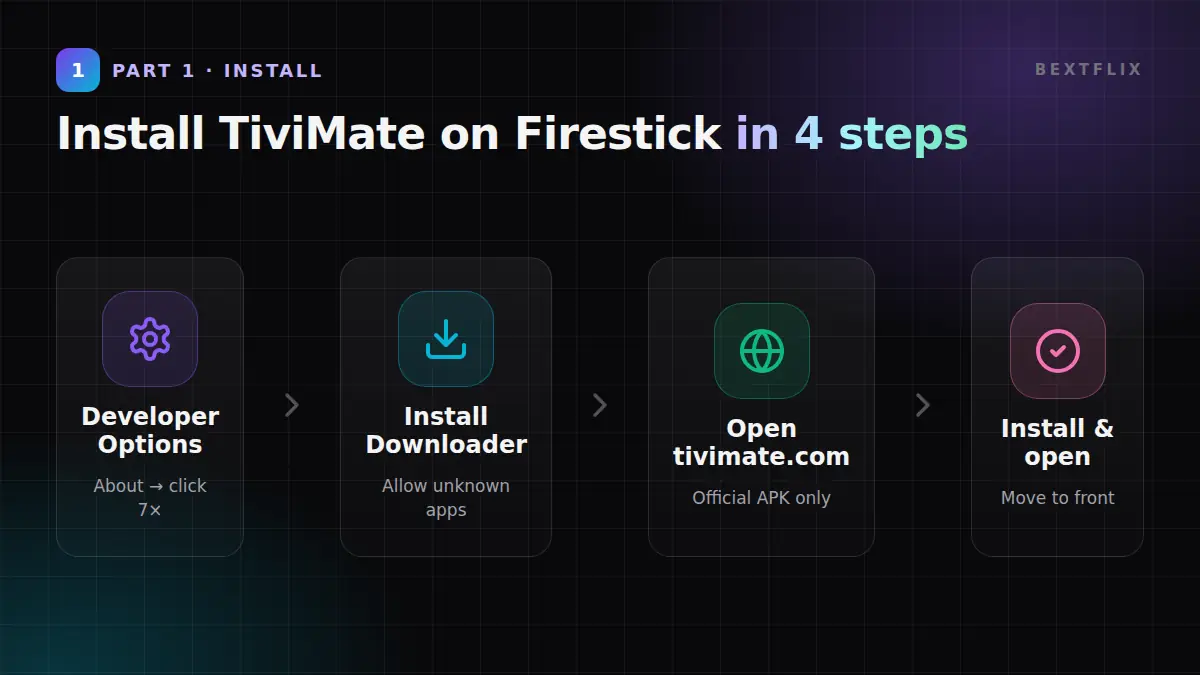
1Enable Developer Options
- Open Settings → My Fire TV → About.
- Highlight your device name and press Select 7 times until you see “You are now a developer”.
- Press Back. Developer Options now appears in My Fire TV.
2Install Downloader and allow it
- On the home screen, open Find → Search and type Downloader (the orange app by AFTVnews).
- Click Get / Download.
- Go to Settings → My Fire TV → Developer Options → Install unknown apps and switch Downloader to ON.
3Download TiviMate from the official site
- Open Downloader and allow access to files if asked.
- In the URL box type
tivimate.comand click Go. - Click the APK download link on the page and wait for it to finish.
- Click Install, then Done, then Delete to remove the APK file.
- Move TiviMate to your home screen: Your Apps & Channels → highlight TiviMate → ☰ Menu → Move to front.
Part 2Add your playlist
Open TiviMate and choose Add playlist. You can use Xtream Codes or an M3U link.
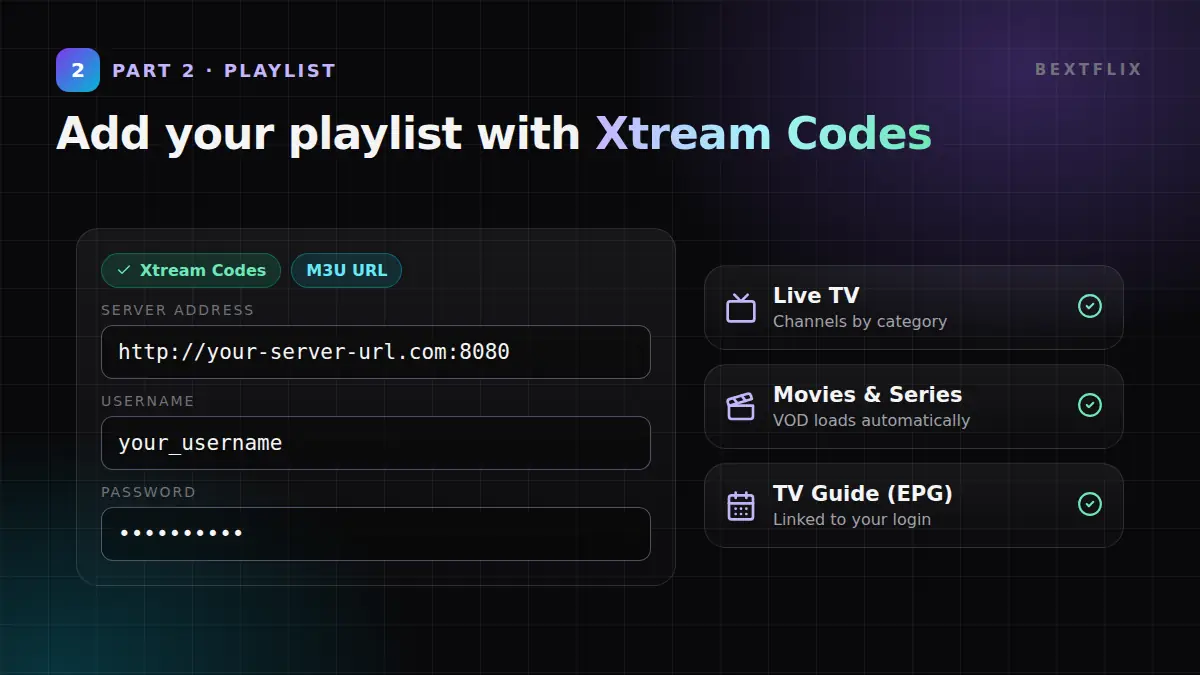
AXtream Codes (recommended)
- Choose Xtream Codes.
- Enter your details exactly as in your activation message:
Server address: http://your-server-url.com:8080 Username: your_username Password: your_password - Click Next. TiviMate shows how many channels, movies and series it found.
- Name the playlist (for example BextFlix) and click Done.
BM3U playlist
- Choose Enter URL and paste your M3U link:
http://your-server-url.com:8080/get.php?username=USER&password=PASS&type=m3u_plus&output=ts - Click Next, name the playlist, then Done.
Part 3Best TiviMate Firestick settings for zero stuttering
Open TiviMate → Settings (⚙) → Playback. Menu names can vary slightly between versions.
1Buffer size
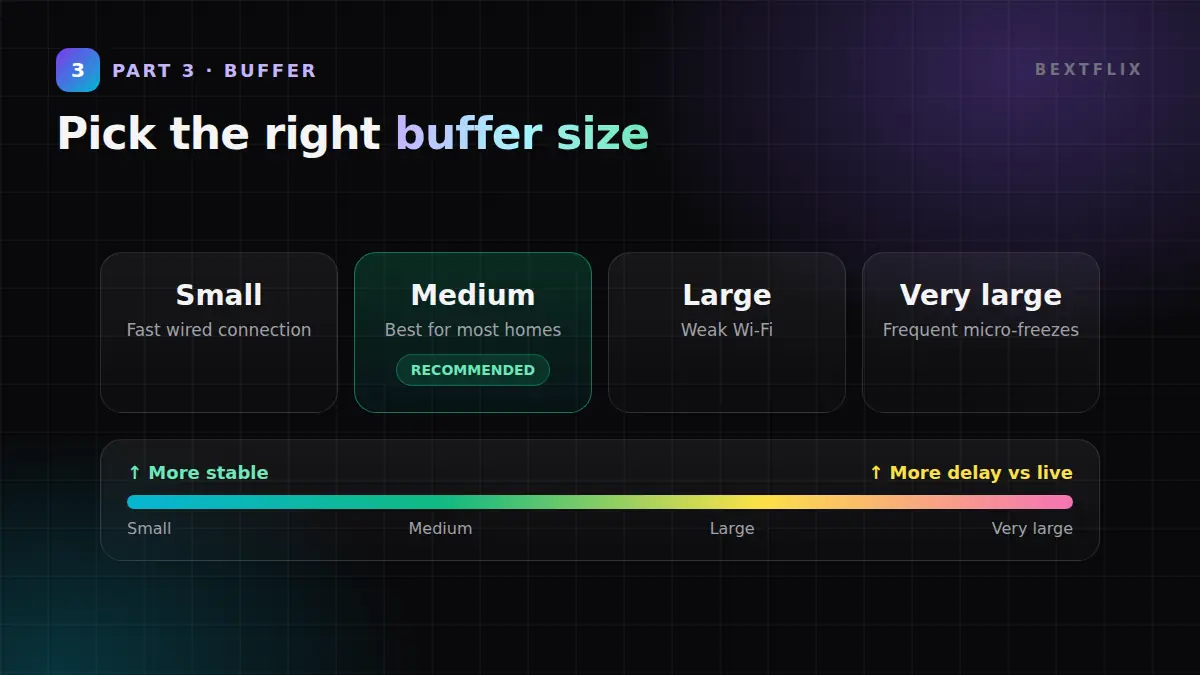
| Setting | When to use it |
|---|---|
| Small | Fast, stable wired connection; lowest delay vs live |
| Medium ✅ | Best default for most Wi-Fi homes |
| Large / Very large | Weak Wi-Fi or frequent micro-freezes; adds a few seconds of delay |
2Decoder
- Hardware (default): uses the Firestick’s video chip. Best for 4K, HEVC and 60 fps.
- Software: try it only if one channel shows green blocks or no picture. It’s heavy on the CPU, so not for 4K.
- Leave any Auto / Hardware+ option on its default unless you have a problem.
3Auto Frame Rate: essential for sports
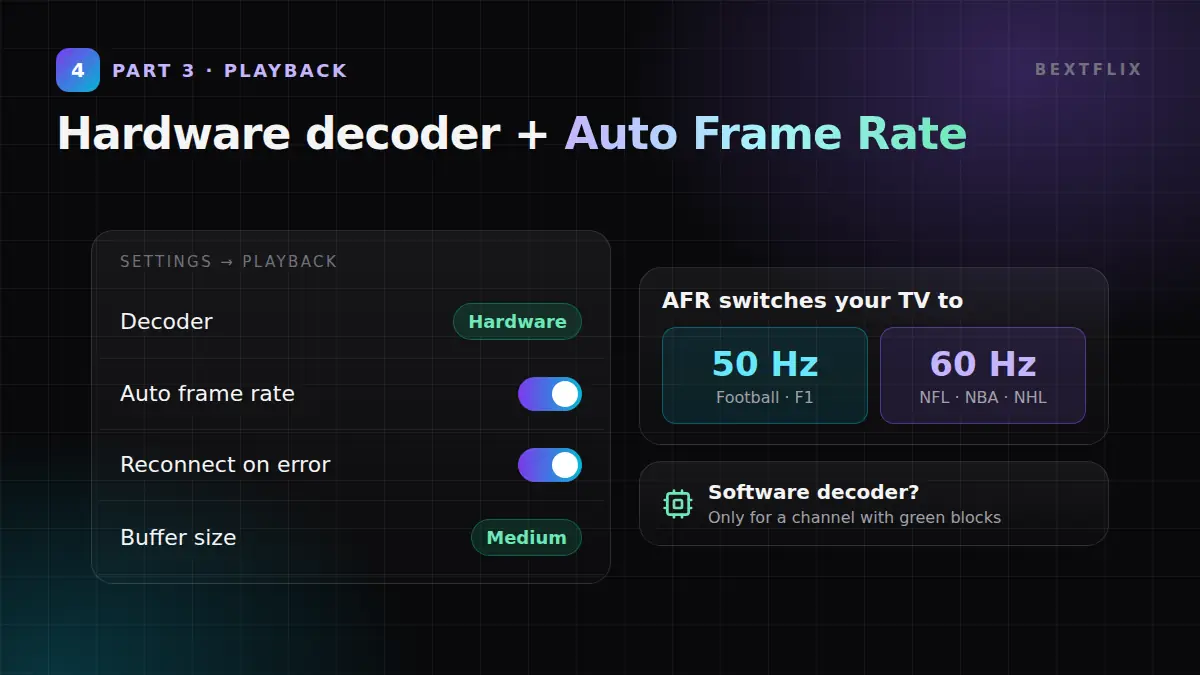
Turn Auto frame rate ON. TiviMate then switches your TV to 50 Hz for UK and European football and F1, and 60 Hz for NFL, NBA and NHL. This removes the judder you see on fast camera pans.
4Reconnect & stream type
- Turn Reconnect on stream error ON (in some versions: Auto reconnect), so a short drop recovers by itself.
- If your playlist offers both, compare TS and HLS on the same channel and keep the smoother one.
5Firestick system tweaks
- Settings → Preferences → Featured content: turn off autoplay video and audio.
- Settings → Preferences → Privacy: turn off data monitoring.
- Restart the Firestick once a week: hold
Select + Playfor 5 seconds. - Keep 1 GB+ free storage (Settings → Applications → Manage Installed Applications).
- Use an Ethernet adapter or 5 GHz / Wi-Fi 6 for 4K.
Part 4Set up the EPG (TV guide)
With Xtream Codes the EPG is added automatically. Check it under Settings → EPG:
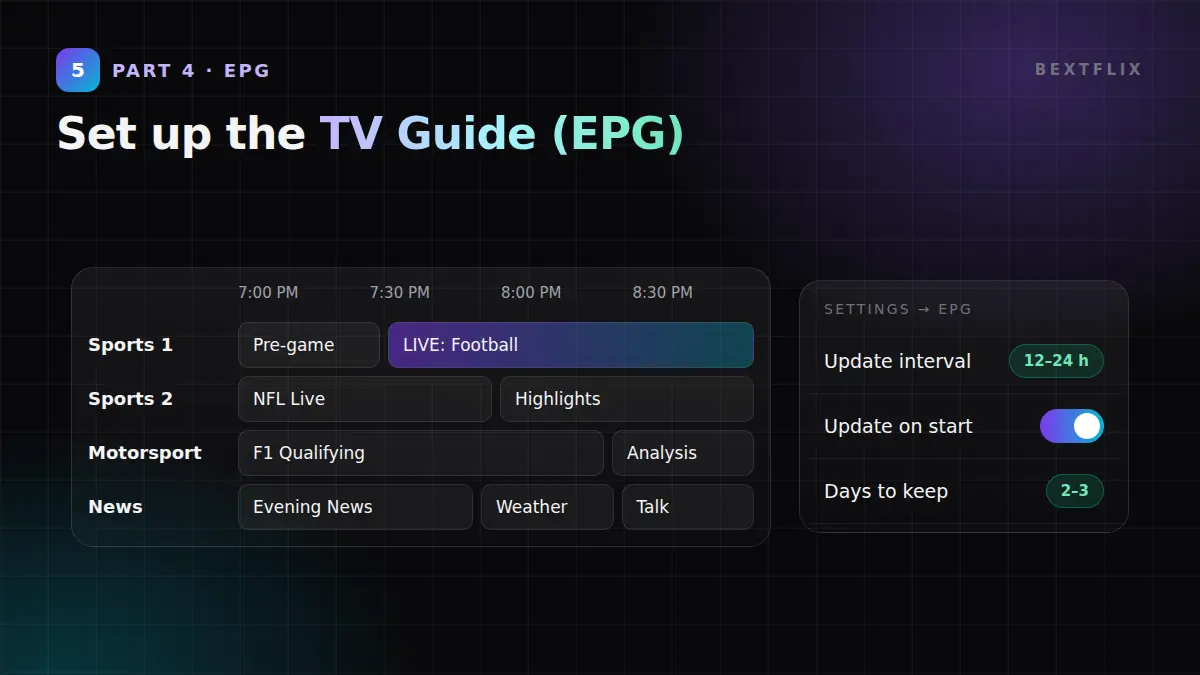
- EPG sources: your playlist’s guide should be listed. If not, click Add EPG source and paste the EPG URL from your provider:
http://your-server-url.com:8080/xmltv.php?username=USER&password=PASS - Update interval: every 12 or 24 hours.
- Update EPG on app start: ON.
- Days to keep: 2–3 (more days use more memory on Firestick).
- Time shift: if listings are off by 1 hour, fix it here, and check the Firestick’s time zone.
Quick troubleshooting
| Problem | Fix |
|---|---|
| Buffering on every channel | Speed test on the Firestick (25 Mbps+ for 4K), Ethernet or 5 GHz, buffer to Medium/Large |
| Judder on football pans | Auto frame rate ON in TiviMate and Match Original Frame Rate on Firestick |
| Green screen / no picture | Switch the decoder to Software for that channel |
| “Playlist error” | Check http://, the port, and the case-sensitive username and password |
| Blank EPG | Settings → EPG → Update EPG, then check the time zone |
Still stuck with your TiviMate Firestick setup? More fixes: IPTV Buffering? 10 Fixes That Actually Work · Prefer IPTV Smarters? See our Firestick & Apple TV setup guide.
Frequently Asked Questions
Is TiviMate free?
The basic TiviMate app is free. TiviMate Premium is a paid upgrade bought through the TiviMate Companion app on an Android phone. It unlocks multiple playlists, recording, catch-up and most advanced settings.
Is TiviMate legal?
Yes. TiviMate is a media player and contains no channels. You are responsible for the playlist you load into it. Always install it from the official website.
What is the best buffer size in TiviMate for live sports?
Medium works best for most homes. If you still see micro-freezes on Wi-Fi, switch to Large. A bigger buffer is more stable but plays a few seconds behind live.
Why does football look jerky in TiviMate?
Football and F1 are broadcast at 50 fps, US sports at 60 fps. If your TV runs at a different refresh rate you see judder on camera pans. Turn on Auto frame rate in TiviMate and Match Original Frame Rate on the Firestick 4K Max.
Does the TiviMate Firestick app work on the Firestick Lite?
Yes, but the Firestick Lite plays up to 1080p. For 4K and the smoothest 60 fps sports, use the Fire TV Stick 4K or 4K Max.
Xtream Codes or M3U: which is better?
Xtream Codes. It loads live TV, movies, series and the TV guide automatically, and it is less error-prone than a long M3U link.
Ready to test your TiviMate Firestick setup?
Get a free 24-hour BextFlix trial and load it in TiviMate in under 5 minutes: 55,000+ live channels, sports in native 50/60 fps, and 220,000+ movies and series.
Ready to Start Streaming in 4K?
Join 5,400+ happy customers watching live channels, movies, series and sports on every screen. Try it free for 24 hours.
- No satellite dish
- All devices
- 24/7 WhatsApp support